Commands and keys
Slash commands
Type / to open the command menu, then narrow it by typing. Use Tab or the
arrow keys to choose. Enter accepts a selected completion; another Enter runs it.
/help(or/commands): grouped command list and keyboard shortcuts./config: open the searchable settings editor to inspect values and their sources, edit user/project defaults, or remove an override./config list | diff | path | get KEY | set KEY VALUE | unset KEY | reset | project ...keeps the direct-command interface, with completion for setting names and values. See Configuration./bind(or/bind list): list default, custom, and disabled prompt bindings;/bind KEYinspects one./bind KEY /command argsor/bind KEY @actionsaves a mapping./bind actionslists built-in targets,/bind reset KEYrestores one key, and/bind resetrestores all defaults. See Keybindings./unbind KEY: disable a prompt action key, including a default binding. Changes apply immediately and are saved for your user, not the project./login [claude|openai-codex]: sign in in a browser.claude(the default) runsclaude auth loginfor the loginclaude:models use (details);openai-codexuses Pydantic AI's OAuth flow (no CLI required).anthropic:models useANTHROPIC_API_KEYand have no sign-in./logout [openai-codex]removes pcode's stored Codex login (/logout anthropicclears one left by an earlier version), leaving CLI credentials untouched. Both require an idle conversation./model: searchable model picker for configured providers. Keeps the conversation; chosen mid-run, it applies from the next request. To switch for one prompt only, start it with$PROVIDER:MODEL(optionally+EFFORT, as in$openai:gpt-5+high fix this) or a bare+EFFORTword; that turn runs there and the next prompt is back on the conversation's model.$completes model names as it does in/btw. A$word without a lowercaseprovider:part ($HOME) or an unknown+level is ordinary text. Another model starts without the conversation's prompt cache, and automatic compaction is skipped for its turn, since that model's window and summarizer would decide what the conversation keeps. Such a prompt never steers a running turn; it queues as its own./resendof it asks the conversation's model./effort [low|medium|high|xhigh|default]: set reasoning effort; bare shows the current level (details)./mcp [list | enable NAME [--save] | enable-all | disable NAME [--save] | logout NAME]: manage MCP servers./extensions [list | on NAME | off NAME]and/reload: list or toggle extensions, and reload them without losing the conversation (Extending pcode)./subagents [MODEL ...|off]: the modelsdelegate_tasksuggests for running a sub-agent (any otherprovider:modelalso works); each word completes from the/modelcatalog. Bare lists them,offclears them (details)./tools: the tool-call inspector for the current conversation, including resumed calls./tools failedopens it filtered to failures, and/tools editsto calls that changed files./diffs: review the session's work as a git diff, leave notes for the agent, and see what's new since your last review (see Diff browser)./links: pick a URL from the active conversation branch: your prompts, tool arguments and results, or the assistant's replies, most recent first. Duplicate URLs appear once, at their latest position; tool links show the tool name. The picker opens in its search line: typing filters URLs, labels, and sources (case-insensitive) while↑/↓move the selection, and Tab moves to the list.Enteropens the URL in the default browser (openon macOS,xdg-openon Linux, the shell association on Windows).Escclears the search, or closes the picker when the search is empty. Ctrl+T shows/hides tool links (shown by default; URLs also in prompts or replies stay) and Ctrl+F returns to the search. Filters reset when you reopen it. Output dropped by truncation or stored only in a spill file isn't searched. Handy when your terminal or tmux doesn't make links clickable./copy: choose a response from the active conversation branch to copy to the system clipboard, newest first and selected by default. Type to search questions or answer text; use ↑/↓ and Enter to choose. With only one answer, skip straight to copying it or choosing a snippet. A quote renders with a▌rail and wraps to the terminal, which makes it awkward to select by hand, so when the response holds quotes or fenced code blocks a picker lists each one (without its>markers) beside the whole response. Enter copies the selection. This is a second screen in the same popup: Escape returns to the answer list, preserving your search and selection. With only one answer, Escape closes it. pcode asks the model to put text meant for pasting elsewhere, such as a message to send, in a quote. Ctrl+Y with an empty editor does the same./status: current model, workspace, session storage path, completed turns, token usage, and a breakdown of the prompt overhead re-sent with every request (see Where the fixed prompt goes). Opens a popup in the interactive editor; prints inline otherwise./usage: plan limits and spend for the Claude Code and Codex logins, fetched when you run it. Subscription seats show the session (5h) and weekly percentages with their resets, including per-model weekly caps. Seats billed at API rates show monthly spend against its cap (for exampleSpend: $130.00 of $500.00 (26%)). No admin key is needed: Claude reads the login of the currentCLAUDE_CONFIG_DIR(from the Keychain on macOS, else.credentials.json), and Codex uses pcode's/login openai-codexor the Codex CLI'sauth.json, throughPCODE_LLM_PROXYwhen set. Both endpoints are undocumented and can change. An expired Claude Code token is reported, never refreshed, so Claude Code stays signed in. Plain API keys have no per-user usage endpoint and aren't covered./worktree [status|merge|resolve|finish|remove|list|clean]: manage this session's git worktree (details)./resend: retry from the last checkpoint without a new message; shows the previous prompt and spinner./jobs [stop ID|stop all|watch ID|unwatch]: bare/jobsopens a popup listing this session's shell jobs, running first, beside the selected job's command and live output. Ctrl+W pins or unpins its output tail in the command preview, Ctrl+K stops it, and Enter/Esc closes. The subcommands do the same without the popup. Jobs outlive the turn that started them; see Shell jobs./compact [focus]: summarize older context with the current model; keep recent history./autocompact on|off|TOKENS|auto: toggle automatic compaction (saved; default on)./autocompact 200kcompacts once context reaches 200k tokens even if the window is larger (minimum 50k), and the footer shows usage against that cap;autoremoves the cap. Works mid-turn, from the next model request./new: start a new saved conversation; clears the screen and retained scrollback, keeps input history./resume: browse and search saved conversations (prompts, responses, tool calls, name, or session ID); resume one in place./rename [NAME | -]: name this conversation so/resumelists and finds it by that name;-clears it, bare shows it. Available after the first prompt. A name replaces the title the model gives it./switch [HOST | - | new [PROMPT]]: pick another running background session and show it here, or start a new one; the session you leave keeps working if it runs in a host, and ends if it runs in this terminal (/resumebrings it back)./restart: restart this background session's host on the pcode installed now, keeping the conversation./stop: end this background session's host and quit. Quitting any other way (Ctrl+D,/quit) does the same./detach: quit but leave this background session's host running until it goes idle;pcode --attachreturns to it. In a session running in this terminal, it first moves the session into a host and stays on it./tree: browse and fork the conversation; select a user prompt to edit it, or an assistant response to continue from there. Existing branches are kept. Browsable at any time; forking waits for the running turn./btw QUESTION(alias/side): ask a side question against the context the model is working with right now, without interrupting or queueing it. The answer opens in a popup when ready (btw_auto_open); bare/btwopens the answers at any time. There, Ctrl+R asks a follow-up, Ctrl+Y and Ctrl+O copy and open links as/copyand/linksdo, and Ctrl+S and Ctrl+T keep a thread as a summary or a merged/treebranch./btw $PROVIDER:MODEL [$PROVIDER:MODEL ...] QUESTIONasks other models instead, one side question each (choosing the model). A+EFFORTsuffix ($openai:gpt-5+high), or a bare+EFFORTword for the conversation's model, sets that question's reasoning effort from the/effortlevels./agents: follow delegated agents live in a read-only popup: each agent's assignment, plan, prose, and tool calls, which the transcript only summarizes. Works while the turn runs. Ctrl+T shows or hides reasoning. Agents are kept in memory only, so a resumed session starts with none./skill:NAME [text]: run a discovered skill; see Skills as slash commands./theme light,/theme dark,/theme auto: change the input and future output palette; bare/themetoggles. Auto (the built-in default) detects the terminal background at startup, falling back toCOLORFGBG, then dark (including for redirected output). A saved theme takes precedence. Auto also follows the terminal when it switches between light and dark while pcode runs: immediately in terminals that announce the change (Ghostty, kitty, iTerm2 3.6.6+, foot, GNOME Terminal and other VTE 0.82+ terminals, Contour, and tmux 3.6+ passing it on), and within a couple of seconds of the system appearance changing on macOS or GNOME, for any terminal that answers background queries. A terminal that keeps its own colors when the system switches keeps its palette too.pcode config set theme autoalso restores auto mode, andpcode --theme light|dark|autopicks the palette for one launch. The palette decides which/syntaxsetting applies (syntax_darkorsyntax_light); body text and background stay terminal-native either way./syntax NAME: choose colors for the active palette and save them as its default; bare/syntaxreports the current choice./syntax terminalis the default: scrollback, fenced code, the prompt, task rows, and menus all use the terminal's own ANSI colors, so pcode follows your terminal's scheme. Any Pygments style (/syntax gruvbox-dark,/syntax monokai) switches to pcode's own colors: headings, links, quotes, and tables use the palette, and code, popups, and prompt are derived from the style. See Code highlighting styles. Retained scrollback is rebuilt with the new colors, like/redraw./theme-preview: sample Markdown, code, diffs, tables, and tool summaries, then a gallery of every installed Pygments style (current one marked) with the command that selects it. Never calls the model and isn't added to the conversation.pcode --theme-previewprints the same and exits./redraw: rebuild the transcript at the current width; see Regenerating the terminal transcript./quit(alias/exit): exit. It cancels a running turn and waits for its cleanup first.
Toggles such as /show-thinking, /show-tasks, /show-edits, /show-commands,
/group-tools, and /autohide-tasks are described with the features they control,
on this page and in the transcript.
Popups (sessions, conversation tree, models, tools) use the terminal's default
background and text with reverse-video selection, whatever /theme and /syntax
say. Opening a popup cancels popup requests already waiting, so pressing Ctrl+L
twice quickly opens one picker, not a second after you close the first. Queued
messages and other commands are unaffected, and asking again after closing opens
the popup normally.
File references with @
Type @ anywhere in a prompt to reference a workspace file. The menu matches any
part of the path, so @ui.py finds src/pcode/ui.py; files whose name matches
come first, and each row shows the file's size. Accepting a match inserts the
workspace-relative path, ./src/pcode/ui.py, which is what the model's file tools
take (names with spaces are quoted). References are underlined in the editor.
Only the path is sent. pcode never reads the file for you, so the model decides whether reading it is worth a call; the size in the menu shows that cost up front.
In a Git checkout, candidates are tracked plus untracked files, honoring
.gitignore. Elsewhere they come from ripgrep (skipping hidden entries, honoring
.ignore, and excluding build directories such as node_modules), or a plain
directory walk when ripgrep isn't installed. The list refreshes at most every ten
seconds, so a brand-new file can take a moment to appear.
Keys and layout
The table below shows the defaults. See Keybindings to customize
prompt actions with /bind, choose a leader, or configure vi editing.
Actions that pick a mode, open a picker, or toggle a widget follow the shortcut prefix: by default, hold Ctrl while pressing the letter. Ctrl+/ browses contextual help; the shortcuts it lists still work while it is open. Enter, the arrows, Ctrl+J, Ctrl+C, and Ctrl+D never change.
| Key | Action |
|---|---|
| Enter | Send using the active send mode, or accept a selected completion |
| Ctrl+/ | Browse contextual help |
| Ctrl+S | Cycle steering → queue → interrupt for the next send only |
| ↓ | Newline when on the last line with nothing to complete or recall (works in vi insert mode) |
| Ctrl+J / Shift+Enter | Newline; see Newlines in tmux if neither reaches pcode |
| Alt+Enter | Newline in Emacs mode only (Esc followed by Enter also works) |
| Tab / arrows | Browse completion; arrows also navigate input/history |
| Ctrl+L | Choose a model (keeps the conversation; applies from the next request) |
| Ctrl+N / Ctrl+P | Raise / lower reasoning effort for the next turn |
| Ctrl+^ | Back to the session this terminal showed before (/switch -) |
| Ctrl+O | Show/hide the Tasks/Tools widget (saves the default) |
| Ctrl+T | Choose where thinking shows: o off, s status line, b scrollback (saves the default) |
| Ctrl+Y | Copy the current draft to the system clipboard (collapsed pastes are expanded first); with an empty editor, /copy chooses a response |
| Ctrl+G | Mirror commands and their output to scrollback (saves the default) |
| Ctrl+V | Show/hide edit diffs in scrollback (/show-edits, saves the default) |
| Ctrl+] | Group/ungroup runs of tool calls (/group-tools, saves the default) |
| Ctrl+C | Discard input; cancels the running turn only when the prompt is empty |
| Ctrl+D | Exit on empty idle input (stopping a background session's host); cancel during generation |
Terminal flow control is off while the prompt is active. There is no
incremental history search at the prompt. With key_prefix ctrl, Ctrl+S
cycles send mode and Ctrl+O replaces the editor's insert-newline binding;
Ctrl+J still inserts a newline.
Ctrl+Y copies whatever is in the editor, so you can move a draft elsewhere
without sending it. A collapsed paste marker is expanded first, so the clipboard
gets exactly what Enter would send. In direct chord mode only, this replaces
yank in Emacs mode and copy-character-from-above in vi insert mode. With
nothing typed it runs /copy instead, to choose a response or a quote
from it. Copying uses a local helper (pbcopy, wl-copy,
xclip) or OSC 52 over ssh, like the popups, and truncates at 64 KiB.
Setting acknowledgements are transient. Toggles and display settings
(/show-thinking, /show-tasks, /show-edits, /show-commands,
/group-tools, /autohide-tasks, /autocompact, /theme, /syntax,
/effort) answer on a line just above the editor and clear after five seconds.
They never enter scrollback, so flipping an option repeatedly doesn't litter the
transcript. Long acknowledgements wrap and are capped at six rows. Everything
else a command reports (/status, /mcp, /help, login flows, session and
model changes, warnings, errors) goes to scrollback. Without a live panel
(redirected output, --print), acknowledgements are printed instead.
The editor
The input sits at the bottom of the pane from startup: one line plus its border. It grows upward for wrapped text or newlines and shrinks as text is removed. Completions appear above it. Very long input scrolls within the available height. Multiline bracketed paste works; mouse capture is off.
Wrapping is word-aware: a word that would straddle the right edge moves to the next row whole. This is display only; the text you send is unchanged. A single word wider than the pane still has to split.
The editor stays usable while the model works, including multiline input,
history, slash completion, and @ references. See
Sending while the agent is working.
Editor history is kept in memory only.
Tasks/Tools widget
Tasks and running sub-agents share one compact widget at the top of the editor
box (or above it, with attach_tasks=off). Task
rows show status icons and keep the active item in view. By default the text is
shaded by status too: the active task stands out and finished ones fade.
/config set task_style icons gives every task's text the same weight instead,
so only the coloured icon (✓ done, ↺ in progress, ○ pending, –
cancelled) says where it stands; task_style status brings the shading back.
Both apply immediately. Running
sub-agents appear beneath the active task with tree
guides (├──, └──, │); with no active task, they appear unparented.
Tool calls never get rows here: most finish in milliseconds, so rows for them
would flicker in and out. The status row is the editor box's top border, below
thoughts, notices, side questions, and command previews. It names the
newest running call's verb and counts the rest (Running 3 tools). A finished
call gets its line in scrollback.
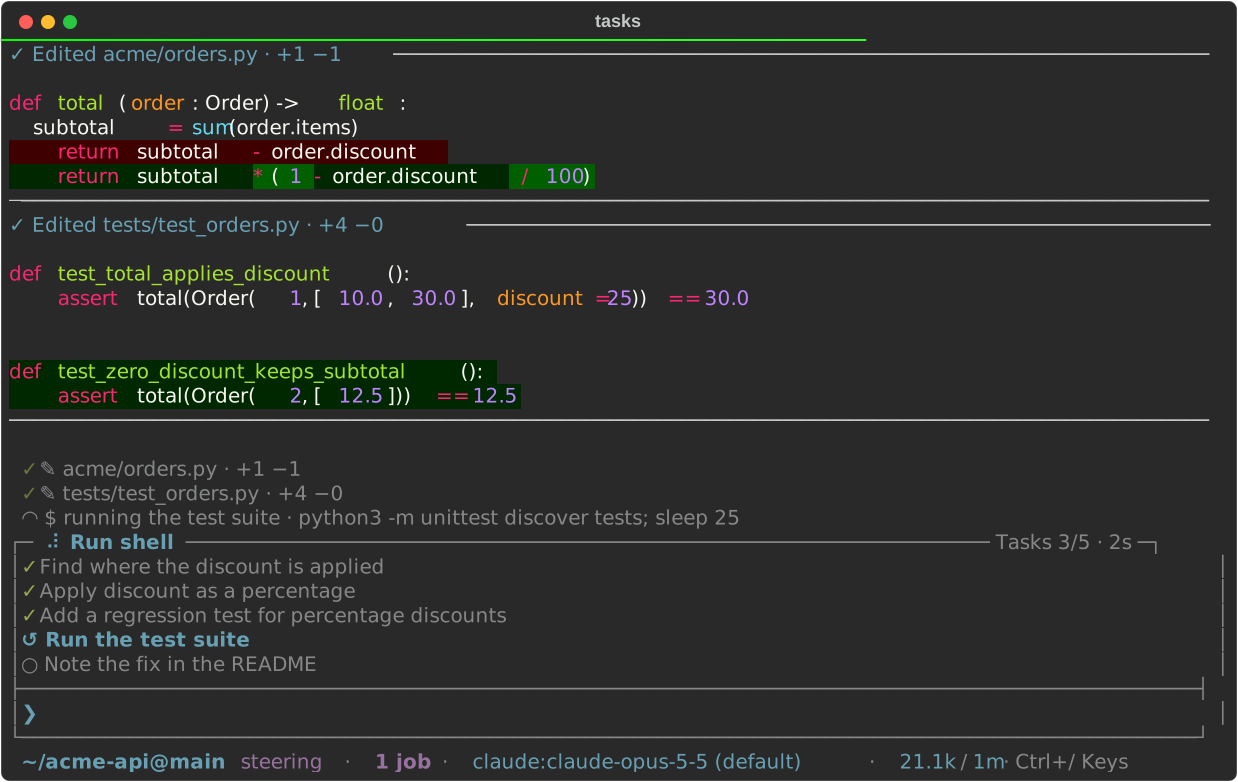
The status row always reads the same way: a spinner, what the turn is doing, and on the right the run's tool count and how long this phase has lasted. The command, path, or pattern a tool call works on gets its own row above, with the full width of the pane, so the status row stays short. While the call runs, the row spins in a muted shade with a round spinner, so it never reads as the status row's dotted one, which means the model is working:
∴ Checking where the config is loaded
◜ ✎ src/app.py
┌─ ⠋ Edit file ──────────────────────────────────── ✓ 7 ✗ 1 tools · 2s ─┐
Read top to bottom, that is why (the thought), what (the call), and how it is
going (the status row). A glyph stands in for the call's verb: $ runs a
command, ⌕ searches, ✎ edits or writes a file, ⎘ reads one, and ⧖
waits on a job. A tool without one keeps its verb spelled out. Many fonts
lack ⌕, ⎘ and ⧖, and the terminal borrows them from another font;
if they look off in yours, /config set tool_glyphs off drops them and names
the verb once the call settles. Shell calls keep $.
Once a call finishes, its spinner turns into ✓ or ✗ and the row stays
while the next calls run, newest last, so parallel calls each get a row and
line up whether or not a thought is showing:
∴ Checking where the config is loaded
✓ ⎘ src/app.py
✓ ⌕ load_config
◜ $ make test
┌─ ◜ Run shell ────────────────────────────────────── ✓ 9 tools · 3s ─┐
The turn's three latest calls are shown, fewer in a short pane;
/config set tool_max_lines 1 keeps just the call the status row is on.
A finished call's row clears after 10 seconds (tool_linger_seconds; 0 keeps
it until newer calls push it out).
Work pcode runs itself has no tool row, just its detail on the status row:
┌─ ◜ ◈ Compacting context ▸ keep tests ──────────────────────────── 4s ─┐
A spinner means the turn is waiting on that row. Running jobs are counted in
the footer below the editor as 1 job or N jobs, including jobs being waited
on; the count is hidden at zero. Use /jobs for individual job details.
The phase is the one highlighted word, and a stall shows as its clock climbing
(Thinking · 40s). With the Tasks/Tools widget hidden (Ctrl+O or
/show-tasks off, or a pane too small for it), the plan's active step follows the phase as its detail
(Waiting for model · Adding the migration), so the row still says what the
turn is for. Each row holds what it says for a moment, so a burst of
quick calls reads as progress rather than flicker. ◈ marks work pcode runs
itself, such as compaction.
Faded, indented rows above the status row show the model's newest thoughts, up
to three of them, kept until the turn ends; that is the default
/show-thinking status-line mode (see
thinking).
Press Ctrl+O or use /show-tasks [on|off] to hide or show the widget without
stopping work or clearing tasks. The prompt and queue stay visible. Visibility
is saved (default on); pcode config set show_tasks off sets it from the shell.
/autohide-tasks on (or pcode config set autohide_tasks on) hides the widget
when the model finishes a turn, keeping the idle prompt compact. It returns on
the next turn, and Ctrl+O brings it back immediately. Default off.
It also hides in a pane shorter than tasks_min_rows (default 30) or narrower
than tasks_min_columns (default 100), and returns when the pane grows back, so
a split in either direction keeps the transcript readable. Each attached
terminal checks its own pane. Ctrl+O shows it in a small pane anyway until the
pane crosses the threshold again; 0 turns either check off. tasks_min_rows and
tasks_min_columns apply immediately through /config.
By default the widget is attached to the top of the editor box
(attach_tasks=on), with a divider between tasks and your draft. The running
status rides the box's top border above the tasks, with the plan's count
(Tasks 2/5) at its right; between turns the widget's heading takes the
border. Queued prompts sit above the combined box.
/config set attach_tasks off draws it in a separate box above the editor, and
/config set attach_tasks on attaches it again. Both apply immediately and save
the preference; pcode config set attach_tasks off works from the shell.
pcode config set tasks_max_height 0.5 caps the widget and editor together at
half the screen; a whole number such as 20 caps them at that many rows. Tasks
get the room first and the editor keeps at least one text row, so a long plan
shows more steps while a long draft scrolls inside the editor. Unset (the
default), the widget takes at most 10 rows or half the screen, whichever is
smaller, and the editor grows into what's left. In small panes the widget
shrinks further, keeping the active task and its sub-agents; an empty widget is
hidden.
Task additions and status changes show up as soon as the model starts streaming
them, before the tool runs. Those early updates are provisional: the tool result
confirms them, and a cancellation or failure discards them. Only confirmed plans
are saved. Successful planning calls update the task rows without adding tool
rows; failed ones stay visible as failed calls. Plans persist across turns and
resumed sessions; /new clears them.
Delegated sub-agents
A running delegate_task has its own row, starting with » instead of a status
icon and drawn in its own color, so it never reads as one of your tasks. It
leads with the purpose the model gave the delegation, then elapsed time and
phase. A sub-agent other than the built-in worker, such as an extension's
reviewer, is named ahead of its purpose (» Reviewer: checking the fix). With
no purpose, the row names the agent and ends with the start of its assignment
instead. The phase is Waiting for model, Thinking,
Working (one of its tools is running), or Responding. The row stays for the
sub-agent's whole run and leaves when it finishes; scrollback records whether it
was done or failed. While nothing else is running, the status row reads
Waiting for 2 agents, and shows the newest one's row when the widget is hidden.
A sub-agent that plans shows up to three of its tasks beneath it, centered on its active task, and they update as it works. Its own tool calls show on the status row, like yours, rather than in the tree. Its plan is separate from yours: never saved and never merged into your plan, and it leaves with the delegate. The built-in worker always plans; an extension's delegate can opt in (see Sub-agents in the extension guide).
↺ Fix the flaky login test
└── » investigating the retry path · 12.4s · Working
    ├── ✓ Read the retry code
    ├── ↺ Reproduce the failure
    └── ○ Report back
Shortcut prefix
Pcode action shortcuts use a key behind one prefix, the key_prefix setting.
Customize the main prompt's mapping with /bind;
popup mappings are unchanged.
The default is ctrl, using direct Ctrl chords: Ctrl+S cycles the send
mode, and Ctrl+L opens the model picker. There is no global action-menu leader
by default. To use a leader, configure it explicitly, then restart the prompt:
pcode config set key_prefix ctrl+b           # Ctrl+B, then s cycles the send mode
pcode config set key_prefix ctrl+p           # Ctrl+P, then s cycles the send mode
pcode config set key_prefix "ctrl+x ctrl+p"  # a leader of several keys, pressed in turn
pcode config set key_prefix ctrl             # direct Ctrl+S, Ctrl+L, etc.
pcode config unset key_prefix                # restore the default direct Ctrl chords
Press Ctrl+/ to browse contextual help for the prompt or the popup you are using, including navigation, editing, and actions. The prompt and popups show one compact help indicator rather than separate hints beside every control.
With a configured leader, press and release it to open the same help surface in
action mode, then press the plain action letter (without Ctrl). A listed
letter runs its action; Esc dismisses the menu without changing your draft.
The leader works whatever has focus, including a popup's search line or the
/btw editor. Help stays read-only for plain keys, but a shortcut it lists
(Ctrl+L, or the leader and a letter) runs straight from it and closes help.
Ctrl+/ takes over Emacs's Ctrl+_ undo chord; Ctrl+X Ctrl+U still undoes.
At the prompt the default keys are s send mode, l model, n/p more/less
effort, o tasks widget, t thinking, g command output, ^ previous
session, and y copy the draft or choose a response. Custom bindings share the same
menu and prefix. Each popup lists its own in contextual help; see
Popup keys.
A leader takes over whatever its key did before: with ctrl+p, Ctrl+P no
longer moves up a line or lowers effort (that is now Ctrl+P p). A configured
Ctrl+B likewise takes over Emacs's backward-character chord; use ← instead.
If tmux also uses Ctrl+B, send its prefix through to pcode or choose a different
pcode leader. Keys nothing
else uses make the least surprising leaders: ctrl+space, ctrl+], ctrl+\,
or a function key such as f2. A leader is built from Ctrl+key (a letter,
space, ], \, or ^) and F1–F24. Ctrl+C, Ctrl+D, Ctrl+H, Ctrl+I,
Ctrl+J, Ctrl+M, and Ctrl+[ are refused because terminals send them as
Backspace, Tab, Enter, and Esc, or pcode needs them everywhere. Ctrl+_ is
refused too: it is how terminals send Ctrl+/, the help key.
The prompt reads key_prefix at launch; popups read it as each one opens.
Optional vi editing
The prompt uses Emacs-style editing by default. To use vi bindings from the next launch:
pcode config set editing_mode vi
/config set editing_mode vi in a session works too, followed by a restart.
Restore the default with pcode config unset editing_mode.
The editor starts in insert mode; Escape switches to normal mode, and i or a
resume inserting. o / O in normal mode open a line below / above. Standard vi
motions and editing commands work. Enter still submits (or accepts a selected
completion), and Ctrl+J inserts a newline. Escape takes priority in vi mode, so
Escape then Enter submits rather than inserting a newline; that's why Alt+Enter
is a newline only in Emacs mode. Other pcode shortcuts are unchanged.
To leave insert mode by typing jj (or another sequence such as jk), set
vi_escape_sequence; see Leave insert mode with jj.
Normal-mode shortcut prefix
pcode config set vi_key_prefix '<space>' adds a leader for vi normal mode:
after Escape, press Space and then an action key, such as Space l for the
model picker. It shares its mapping with the global prefix, which keeps
working. See Use Space as the vi leader
for the details.
Escape timing and newlines
Vi mode waits only 100 ms for a terminal escape sequence to complete, so Escape enters normal mode without a noticeable pause. Very slow or laggy connections may occasionally split an escape sequence.
Shift+Enter inserts a newline when your terminal sends a distinct CSI-u or
xterm modifyOtherKeys sequence for it. Ctrl+J works as the plain LF byte or
those extended encodings. If your terminal sends ordinary Enter for Shift+Enter,
pcode can't tell them apart: map Shift+Enter to send Ctrl+J (the single LF byte,
hex 0a, often written \x0a) in your terminal's settings, and check it inside
tmux too if you use it. The ↓ key inserts a newline whenever it would otherwise
do nothing (last line, no completion menu, not browsing history), so it works
even where no chord gets through.
Newlines in tmux
Inside tmux, Shift+Enter arriving as a plain Enter is almost always tmux, not
the terminal. Two things have to be true, and extended-keys on alone gives you
neither:
- tmux only asks the outer terminal for modified keys when its terminfo
advertises
extkeys; Ghostty's and kitty's do not, so declare it. extended-keys onforwards those keys only to apps that opted into the protocol themselves. pcode does not, so usealways.
set -as terminal-features ',xterm-ghostty:extkeys'
set -g extended-keys always
set -g extended-keys-format csi-u
Reload, then detach and reattach: tmux works out a client's features when it
connects. Check with cat -v: Shift+Enter should print ^[[13;2u. If Ctrl+J
prints ^[[B instead, a remapper (Karabiner, a Ghostty keybind) is turning it
into ↓ before tmux sees it; ↓ still inserts a newline on the last line, so that
is usually fine.
Status line
The line below the editor shows the workspace/branch, the full provider:model
identifier, reasoning effort, and activity. Live models also show context, for
example 12.5k/200k (tokens used / working window). Long paths shrink first,
and narrow terminals may cut off trailing details; send mode and working status
take priority over model and path.
Used context is the latest completed request's input tokens, including
cached input, not cumulative usage. It updates after each request, so it moves
during a long tool loop, and it follows the selected history when you resume or
switch branches. It doesn't include your draft, tool results not yet sent, or a
response still streaming. It shows 0 for an empty conversation or before usage
is reported. /status shows cumulative session input/output usage.
The working window is the same one compaction uses. pcode takes it from the
serving provider when it can (Codex's models endpoint or Anthropic's Models
API), otherwise from an exact provider/model match on
Models.dev. Codex never borrows ordinary OpenAI API
limits, and custom proxies or Anthropic subscription logins don't inherit
direct-API limits. When separate input and total-context limits are known, the
smaller one is used. Public metadata is cached for 24 hours in
$XDG_CACHE_HOME/pcode/model-context-v1.json (default ~/.cache/pcode/).
Unknown limits show ?, so a first run offline can show ?, and Codex needs a
successful lookup or an explicit override.
When a request reuses much less of the prompt cache than before, a muted note
such as cache miss 0/166k follows the context until your next prompt; see
prompt cache notices.
Sending while the agent is working
Enter uses the saved send_mode (default steering). Ctrl+S cycles
steering → queue → interrupt for the next send only: the status bar
shows the picked mode with (once), and the saved default returns as soon as a
prompt is sent. Messages already queued keep the mode they were sent with. Each
send clears the editor for another draft; the toolbar shows the mode and the
number of pending messages.
- steering: deliver input at the next model request, after the tools the model already asked for finish. Nothing is skipped, so an "also do this" doesn't make the model redo work. A shell command the turn is waiting on doesn't hold that request back: the wait ends and hands the model a job handle, and the command keeps running. Pending input is labeled “Steering”; once delivered, it replaces the active prompt in the task bar. If the turn finishes first, it's sent as a follow-up turn.
- queue: wait for the current turn to finish, then start a follow-up turn. Queued messages run in order.
- interrupt: cancel the current turn, discard pending messages, and send the new message once cancellation finishes. A shell command the turn was waiting on keeps running as a job: you're redirecting the model, not cancelling its work. Ctrl+C does stop it.
Set the default with pcode config set send_mode steering (or queue /
interrupt); /config set send_mode queue changes it for the next launch.
Input sent while idle starts a normal turn in every mode.
Slash commands run separately from the model, so help, inspection, theme,
context, and effort commands work while it's busy. /model also works and
applies from the next request. /new, /resume, /login, and /logout need
an idle conversation: cancel or wait, then retry.
Cancelling:
- Ctrl+D cancels the current turn and clears queued messages, keeping your unsent draft and cursor.
- Ctrl+C discards the draft first, so cancelling with it takes a second press when the prompt has text. It also clears queued messages.
- A failed turn clears queued messages too, rather than running more requests. Queued slash commands are kept.
- The queue lives in memory until each message is sent.
- Cancelling never undoes tool effects that already happened. After a failed or cancelled run, the conversation resumes from the last settled point when safe.
Running a command yourself: !command
A message starting with ! runs the rest as a shell command in the agent's
working directory and environment, without asking the model anything:
❯ !make test
Output streams into the live command panel while it runs and is mirrored to
scrollback when it ends (the last command_scrollback_lines rows). Ctrl+C kills
the command and its process group. There is no timeout.
The model hears about it with your next message, as if it had called the
shell tool itself: it sees the command and its output (plus [exit code: N]
when non-zero). Long output is handled like any tool result: over
tool_output_threshold characters it is stored behind a read_tool_result
handle with a tool_output_preview_chars preview, and the model reads only the
slices it needs. A !command typed during a turn waits in the queue whatever
the send mode, and nothing reaches the model until you send a message, so
!make test followed by why did that fail? is the usual pattern.
Popup keys
Every full-screen popup (/diffs, /tools, /links, /tree, /resume,
/switch, /jobs, /agents, /btw, /status, and the Ctrl+L model picker) scrolls with the same keys,
acting on whichever pane has focus:
| Key | Action |
|---|---|
| ↑ / ↓ | Move the selection in a list, or scroll a text pane by a line |
| PageUp / PageDown | Move or scroll by a page |
| Ctrl+U / Ctrl+D | Move or scroll by half a page |
| Tab / Shift+Tab | Switch panes, where a popup has more than one |
| Esc / Ctrl+C | Close the popup and restore the editor draft |
Ctrl+D never closes a popup; it always half-pages. A list with a search line keeps these keys working while you type, so the query stays where it is.
Popups with a search line (/tools, /resume, /switch, /diffs, /links) open with
the cursor in it, so you can type to filter straight away. Each popup's
shortcuts follow the shortcut prefix and act from any pane,
the search line and the /btw editor included, so typing never triggers one.
With the default ctrl prefix, hold Ctrl while pressing the letter below. Ctrl+/ shows
these actions alongside the current popup's navigation and editing keys:
| Popup | Shortcuts |
|---|---|
/btw |
r reply · y copy · o link · s summarize · t merge to /tree · k stop (or type /copy, /links, /summarize, /merge, /stop in the follow-up editor) |
/tools |
f search · x failures only · e edits only · t tool filter · y copy command · o copy output |
/diffs |
f search the focused pane · s / r next / previous match · v next view · n note · a mark reviewed · e open in editor · g refresh |
/resume |
f search · r prompts only · g all workspaces · x delete (twice) |
/switch |
f search · n new session · x stop (twice) |
/jobs |
w watch in the preview · k stop |
/links |
f search · t show/hide tool links |
/tree |
y copy the selection, or pick a quote or code block from a response |
/agents |
t thinking |
With an explicitly configured key_prefix ctrl+b, press Ctrl+B then the letter
instead: Ctrl+B y copies.
Selected rows and scrollbars follow the active theme and syntax colors, like completion menus; popup bodies keep the terminal's default background. With terminal syntax colors, selections use reverse video and scrollbars use the terminal's accent color.
Popups capture the mouse by default: clicks select rows and the wheel scrolls
whichever pane is under the pointer, but a plain drag no longer selects text.
Most terminals still select while you hold a modifier and drag (usually Shift;
Option in iTerm2). In tmux, mouse events reach pcode only with
tmux set -g mouse on.
Ctrl+Q (or your configured shortcut prefix with q)
hands the mouse to the terminal while a popup stays open: a plain drag selects
text again, and the same shortcut once more takes clicks and the wheel back.
Contextual help says which it will do next ("Release mouse" or "Capture mouse"). It lasts until
the popup closes and works in every popup with shortcuts, from any pane, the
search line and the /btw editor included. In tmux with mouse on, a released
drag goes to tmux's copy mode instead; hold the modifier above for the
terminal's own selection. To leave the mouse to the
terminal in every popup instead, so a plain drag selects text and copy-on-select
works:
pcode config set popup_mouse off
Terminals with alternate scroll mode still turn the wheel into ↑/↓ then, moving the selection or the pane a line at a time. The setting is read as each popup opens, so no restart is needed.
Diff browser
/diffs is for reviewing what the agent built: every changed file in one
scroll, in the same colors as scrollback, with notes you can send back to the
agent. It needs a git repository; outside one it says so and points to
/tools edits, which shows each file tool's edit with the call that made it.
The net change it shows depends on the checkout:
- In a linked worktree (the default with
worktree on): the whole branch against its merge-base with the mainline branch, including uncommitted and untracked files. That's what a merge would bring in, whichever tool made the change (file tools, the shell, a formatter, a worker). Merging mainline into the branch moves the merge-base, so mainline's own changes never show up. - In any other checkout: everything since the commit the session started
from, limited to files this session's file tools edited or its own commits
touched, so work stays visible after the agent commits it. A commit counts as
the session's when it was made after the session began by your git identity,
so pulled commits are left out (without a
user.email, only the time counts). Your own commits count too, including another session's in the same checkout, and a session resumed much later still compares against where it started. Those files show all their changes since the start, including ones you made by hand. Files changed through the shell appear once they're committed. IfHEADno longer descends from the start (a rebase or branch switch), or the session predates this, it falls back to uncommitted changes in edited files, and the title says so.
Views and review checkpoints
The top line lists the views with their file counts; Ctrl+V cycles them:
- All changes: the net change above. Files with uncommitted changes are
marked
●. - Uncommitted: what the next commit would take in, against
HEAD(in a shared checkout, limited to the same session files). - Since review: what changed since you last pressed Ctrl+A (mark reviewed). The browser opens here whenever there's something new, so on a long session you read only the latest work instead of the whole branch again. Committing what you reviewed doesn't count as new.
Marking reviewed records exactly the state on screen. A saved session keeps it
in the repository under refs/pcode/sessions/<session id>/, so it survives
restarts; an unsaved one keeps it until /new. The ref keeps that snapshot,
untracked files included, in the repository until the session is deleted or
pcode removes its worktree. To start the review over sooner, delete it with
git update-ref -d refs/pcode/sessions/<session id>/reviewed. Refs hold trees,
not commits, so they never show up in git log --all. Changes a merge from
mainline (or, in a shared checkout, a pull) brings in don't count as new.
Notes for the agent
Move the cursor to a line in the diff and press Ctrl+N to write a note
about it; Enter saves it and Escape drops it. A note sits under its line, and
pressing Ctrl+N on the note edits it (saving it empty deletes it). On a
file's heading, the note is about the whole file. When you close /diffs, the
notes are added to your prompt as path:line, the diff lines around it, and
your note, ready to send or edit first.
With side-by-side diffs, a note anchors to the start of its hunk, since delta's rows pair two lines up.
Ctrl+E opens the file under the cursor in $VISUAL or $EDITOR, at
that line where the editor accepts one (vi-style +line, --goto for VS Code
and its forks, path:line for Helix, Zed and Sublime). The review reloads when
the editor closes. Ctrl+G reloads it at any time, for instance while the
agent is still writing; the view, your place, and your notes are kept.
Moving around
- The browser opens in the search line, searching paths (see Ctrl+F below). Enter moves to the file list.
- The file list is an index: selecting a file scrolls the diff to it, and moving through the diff keeps the list on the file under the cursor.
- Tab/Shift+Tab switch between the file list and the diff. The popup keys act on whichever has focus.
- Ctrl+F searches whichever pane has focus. In the file list it filters
files by path; in the diff it filters to changes with a matching line and
jumps to the first one. Matching is fuzzy: a plain substring, or joined word
prefixes such as
ed_uiforedit_ui.pyorsel_rowforselected_row. Every word of the query must match. Up/Down still move the file selection while typing; Enter returns to the pane. Switching panes and pressing Ctrl+F again starts a fresh query for that pane. - Ctrl+S/Ctrl+R jump to the next/previous matching diff line (Emacs's search keys), from either pane or the search line.
- Escape or Ctrl+C closes the popup and restores the editor draft, with any notes added to it.
Untracked files are included without touching your staging area. Untracked files
that look sensitive (.env, keys, credentials) are listed but never read, and
tracked ones show only their line counts. Secrets in other diffs are redacted as
in scrollback. A file's diff is clipped at 2,000 lines, and a file over 1 MB
shows only its counts. When git can't produce the review (no commits yet, a
detached mainline), /diffs says why instead of opening.
Tool-call inspector
/tools (or /tools failed) opens a browser of every tool call in the current
conversation, including during a turn. It shows the calls available when you
open it; reopen it to see newer ones. The model keeps running while it's open,
and scrollback catches up when you close it. Inspecting never reruns a tool.
- Calls are newest first. The inspector opens in the search field, so typing filters straight away while arrows move the selection; Enter moves to the call list. Tab/Shift+Tab move between the search field, call list, and details.
- Ctrl+Y copies the selected call's command (or its whole arguments when it
has no command) and Ctrl+O copies its output. Copying uses
pbcopy/wl-copy/xclipwhen installed and OSC 52 otherwise; over ssh it tries OSC 52 first. tmux passes OSC 52 through only withtmux set -g set-clipboard on. Copies are truncated at 64 KiB, and the header says what was copied or that copying failed. - Ctrl+X toggles failures only, Ctrl+E toggles calls that changed files, Ctrl+T cycles tool-name filters, and Ctrl+F focuses search. Search matches tool names, statuses, and command/summary previews, not the full output. These work from any pane, including the search field.
- In details, arrows scroll by line, PageUp/PageDown by page, and Ctrl+U/Ctrl+D by half a page. Ctrl+U/Ctrl+D also half-page the call list, even while typing a search. The session browser uses the same keys.
- Mouse clicks and the wheel work unless
popup_mouseisoff; see popup keys. - Escape or Ctrl+C closes the inspector and restores the editor draft.
- Wide terminals show calls and details side by side; narrow ones stack them.
Details include call and run IDs, timestamp and duration when captured,
structured arguments, outcome, and the returned output or error. A call that
changed files leads with its diff, drawn like the scrollback's (through delta
when it's on), then the result, then the raw arguments that asked for it. Commands and
results are shown as blocks, highlighted when they're code or JSON and verbatim
otherwise. Shell commands are formatted as Bash with shfmt when it's on your
PATH (the command is never executed); otherwise pcode breaks one-line commands
at top-level ;, &&, and || and keeps existing multiline layout. Each
command line starts with a display-only $. Ctrl+Y still copies the
command exactly as run.
Nonzero exits, timeouts, and tool retries count as failures; interrupted calls
and unknown results are marked separately. Command tools show an Execution
row saying whether the model waited (foreground) or took a job handle
(background); background calls are tagged in the list, so searching
background finds them. Background launch, check, and stop calls show their
process ID and related calls when available. A successful launch doesn't mean
the process finished successfully.
Provider-run web searches (Anthropic's native web_search, used when the
web_search preference is auto) list each hit's title, URL, and age. The page
text arrives encrypted for the provider, so the inspector can't show it. Local
searches (Exa or DuckDuckGo) and get_page return plain text and show in full.
What the inspector shows is a redacted copy saved in the session's
transcript.jsonl, not an execution log. It survives resume and later failed
requests. Limits:
- Arguments and results are each capped at 128 Ki characters, with truncation markers. Output a tool had already truncated can't be recovered here.
- Unsaved (
--no-save) conversations keep at most 8 MiB of payload text; older details are dropped and labeled, while the call list stays. /newresets the inspector.- Calls from older sessions that didn't capture arguments or results show a missing-details label.
- Redaction is best-effort, not a guarantee that all sensitive content is removed.
Scrollback and history
Use your terminal or tmux scrollback, selection, and search for conversation history. The conversation isn't drawn in an alternate screen; only popups are.
Replies appear in scrollback as rendered Markdown (headings, lists, highlighted code, tables), one finished block at a time. A paragraph or heading appears once it ends, a code block once its closing fence arrives, and a list or quote once the next block starts or the reply ends, so each shows up whole. Already written blocks are never rewritten, so a Markdown reference link defined later in a reply doesn't update earlier text. The spinner and task widget stay live while a block is in progress. See Paced scrollback for how blocks are animated in, and the transcript for what else is written there.
Live model messages and transcript events are saved unless --no-save is set.
Offline preview
Run pcode with no model configured (no --model and no saved default) and it
opens an offline preview: the full interface, answering with canned replies and
sample tool activity instead of calling a model. It's a quick way to try the
keys, popups, and themes. pcode --theme-preview prints a style sample and exits.